
Is It Safe to Delete ~/Library/Caches on a Mac? How to Clear Cache Safely
Yes—most files inside ~/Library/Caches are safe to clear on macOS, if you skip running apps and leave /Library/Caches alone. Includes commands and real Mac numbers.
Yes—most subfolders inside ~/Library/Caches are safe to delete on a Mac, as long as you quit running apps first, remove only the contents inside (never the Caches folder itself), and skip Apple system caches and sensitive tool data. Apps automatically recreate their cache files the next time you open them, so the only normal side effect is a slightly slower first launch or re-downloading cached assets.
What you should not touch are macOS's system-wide /Library/Caches and /System/Library/Caches folders—macOS manages those itself. Also keep expectations realistic: clearing cache reclaims disk space, not RAM or CPU performance; in fact, rebuilding caches can briefly use a little extra disk and network activity right after cleanup.
On one developer Mac we measured using CleanBit's scan engine, general App Caches inside ~/Library/Caches held 5.42 GB across 65 items, Chrome Disk Cache (~/Library/Caches/Google/Chrome) held 4.37 GB, and dedicated developer caches living under ~/Library/Caches added over 1.2 GB more (including 575 MB for Swift Package Manager, 379.7 MB of Homebrew downloads, 261.7 MB of pip cache, and 24.1 MB of pnpm metadata). Even so, ~/Library/Caches was only a slice of the 124.29 GB scanned on that machine—far smaller than iOS DeviceSupport (24.1 GB du), CoreSimulator/Devices (43.0 GB du), Xcode DerivedData (15.3 GB du), and old node_modules folders (66.3 GB du). Always measure first so you know whether caches are actually where your storage went.
1. Check how much space ~/Library/Caches uses (read-only)#
Before deleting anything, check the total size of your user cache folder and see which individual apps are taking the most space:
# Total size of your user cache folder (read-only)
du -sh ~/Library/Caches

# Top 20 largest folders inside ~/Library/Caches
du -sh ~/Library/Caches/* 2>/dev/null | sort -h | tail -20
If you also use web browsers with profile-level caches or developer tools that store caches outside ~/Library/Caches, you can inspect them read-only too:
du -sh \
  ~/Library/Caches/Google/Chrome \
  ~/Library/Caches/Firefox \
  ~/Library/Caches/Homebrew/downloads \
  ~/Library/Caches/pip \
  ~/Library/Caches/org.swift.swiftpm \
~/Library/Caches/Yarn 2>/dev/null2. ~/Library/Caches vs. /Library/Caches: what is safe and what to leave alone#
macOS keeps caches in several locations that look similar but carry very different risk levels:
| Location | What lives inside | Safe to clear? | What happens after removal |
|---|---|---|---|
~/Library/Caches/<third-party app> | App thumbnails, HTTP/image caches, updater downloads | Usually yes (quit the app first) | App rebuilds the cache on next launch; first launch may feel slightly slower |
Browser caches (~/Library/Caches/Google/Chrome, Firefox, com.apple.Safari, plus browser profile Cache/Code Cache) | Cached web pages, scripts, images, and shader caches | Yes (quit the browser first) | Websites re-download assets on next visit; cookies, history, bookmarks, and passwords stay intact |
Developer caches in ~/Library/Caches (Homebrew/downloads, pip, Yarn, org.swift.swiftpm, CocoaPods, go-build) | Downloaded package archives and build intermediates | Yes (when no build or install is running) | Package managers re-download archives next time you install or rebuild |
Risky subfolders inside ~/Library/Caches (com.apple.FontRegistry*, com.apple.spotlight*, CloudKit*, com.apple.finder, pypoetry/virtualenvs*, ms-playwright*, pnpm/dlx*, JetBrains*) | macOS system indexes/databases, Python virtualenvs, Playwright browser runtimes, IDE indexes | No—skip these | Deleting them can break font rendering, Finder/CloudKit sync, local Python virtualenvs, or test runners until rebuilt/reinstalled |
~/Library/Containers/<bundle-id>/Data/Library/Caches | Caches of sandboxed Mac App Store apps | Usually yes (quit the app first) | Sandboxed app regenerates its cache on next launch |
/Library/Caches (root Library) | System-wide caches shared across all user accounts and daemons | Leave alone | Requires admin privileges and can cause glitches in shared services; macOS prunes these itself |
/System/Library/Caches | Core macOS operating system caches (SIP-protected) | Never touch | Protected by System Integrity Protection; attempting to modify it risks system instability |
3. How to clear cache on a Mac manually (Finder & Terminal)#
You do not need any third-party app to clear ~/Library/Caches safely. Follow this conservative sequence instead of wiping the whole folder at once.
Step 1: Quit all running apps first#
Deleting cache files while an app holds open file handles or writes to a SQLite cache database can cause the app to crash, lose transient state, or keep disk space occupied until the process exits. Quit your browsers, editors, chat apps, and Xcode (Command + Q) before cleaning.
Step 2: Inspect and clear specific folders in Finder#
- Open Finder and press
Shift + Command + G(Go to Folder). - Type
~/Library/Cachesand press Return. - Switch to List view (
Command + 2) and sort by Size (enable Calculate all sizes viaCommand + Jif sizes are blank). - Select specific large third-party app cache folders whose apps are not running—skipping
com.apple.*folders, password managers, cloud sync apps, IDEs, and anything you do not recognize. - Press
Command + Deleteto move those folders to the Trash (never delete the parent~/Library/Cachesfolder itself). - Relaunch your apps to verify everything opens normally, then empty the Trash to reclaim the disk space.
Step 3: Clear browser caches safely (without losing logins)#
- Safari: Open Safari → Settings → Advanced, check Show features for web developers, then press
Option + Command + E(or click Develop → Empty Caches). This clears web cache without removing cookies, history, or passwords. - Chrome / Brave / Edge / Arc: Open Delete Browsing Data, check only Cached images and files (leave Cookies and Passwords unchecked), and confirm.
- Firefox: Go to Settings → Privacy & Security → Cookies and Site Data → Clear Data, and check only Temporary cached files and pages.
Step 4: Clean developer caches with their official commands#
When large folders inside ~/Library/Caches belong to developer tools, their built-in cleanup commands are safer than rm -rf:
# Clean old Homebrew download caches
brew cleanup --prune=all

# Purge pip's HTTP and wheel cache
pip cache purge

# Remove unused pnpm store packages (do not delete ~/Library/pnpm/store manually)
pnpm store pruneWhat if ~/Library/Caches is only a few gigabytes?#
On many Macs—especially developer or AI-coding machines—~/Library/Caches is not the main reason storage is full. If your disk is still tight after checking caches, check our dedicated guides on whether Xcode DerivedData is safe to delete, cleaning iOS DeviceSupport and Xcode Simulators, finding and deleting old node_modules folders, removing leftover Claude Code git worktrees, and tracking down Claude Code, Cursor, and Codex disk space.
4. How CleanBit handles ~/Library/Caches (and its sandbox boundaries)#
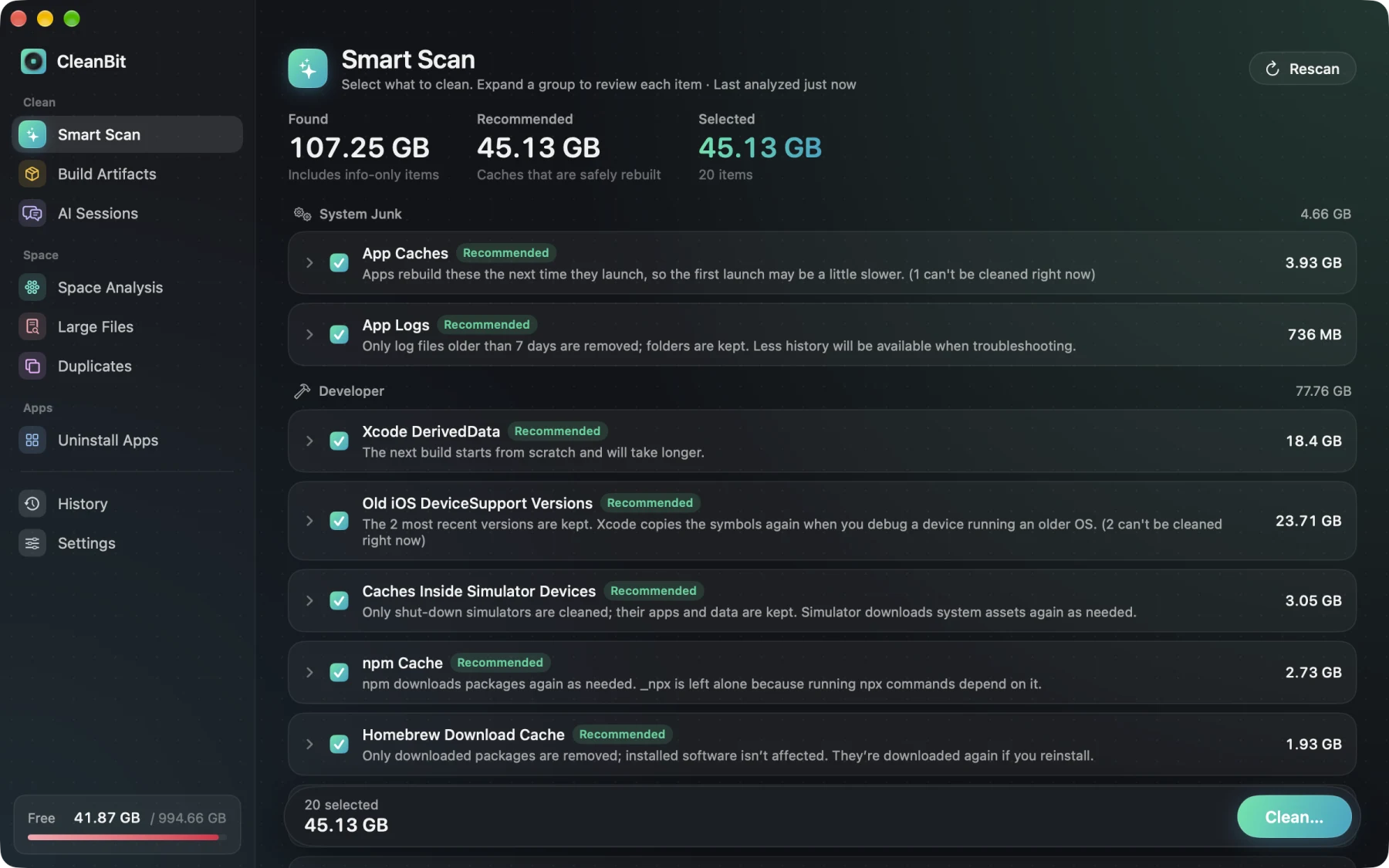
I'm the developer of CleanBit, a sandboxed Mac App Store disk space cleaner for macOS 15+. Because blind wildcard cleaning inside ~/Library/Caches causes unnecessary breakage, CleanBit applies multiple guardrails before anything can be removed:
- Running-app blocking (checked twice): CleanBit checks currently running apps during scanning and locks their caches so they cannot be selected—then re-checks running apps again immediately before deleting each individual item, along with verifying the file path, symlink target, and file identity.
- Protected Apple & third-party bundle lists: CleanBit refuses to delete the
~/Library/Cachesfolder itself, automatically skipscom.apple.*and macOS subsystem prefixes (FontRegistry,Spotlight,CloudKit,Finder,Keychain, and more), excludes sensitive tool paths (pypoetry/virtualenvs,ms-playwright,pnpm/dlx,JetBrains), and skips over 300 protected third-party app bundle patterns (such as password managers, IDEs, cloud sync clients, VPN apps, database clients, creative suites, and messaging apps) during broad cache sweeps. - Dedicated rules with no double-counting: Browser caches (Safari, Chrome, Edge, Brave, Arc, Vivaldi, Firefox—without touching cookies, history, or passwords) and developer caches (Xcode, Homebrew,
pip, Yarn, SwiftPM, CocoaPods, Go) are handled by their own specific rules with dedicated freshness and running-app checks, so the broadApp Cachessweep yields those paths instead of counting them twice. - Sandboxed App Caches (
~/Library/Containers): If you optionally grant Full Disk Access, CleanBit can also inspectData/Library/CachesandData/tmpinside sandboxed app containers—only after verifying each container'scontainermanagerdmetadata matches its bundle ID. - Clear deletion control & honest sandbox limits: Recommended caches are deleted permanently by default so disk space returns right away (or you can switch Recommended items to move to Trash in Settings), while Review items always move to the Trash. Because CleanBit runs inside Apple's App Sandbox with no root privileges and no background helper daemon, it never touches
/Library/Caches,/System/Library/Caches,/private/tmp, APFS local snapshots, or iCloud Drive synced files.
Frequently Asked Questions#
Is it safe to delete everything in ~/Library/Caches on a Mac?#
No—you should not delete the ~/Library/Caches folder itself or wipe everything inside it blindly with rm -rf ~/Library/Caches/*. Most third-party app cache folders inside ~/Library/Caches are safe to remove after quitting those apps, but Apple system caches (com.apple.FontRegistry, CloudKit, com.apple.finder), caches of currently running apps, and tool environments stored there (such as Poetry virtualenvs or Playwright browsers) should be skipped.
What happens if I delete ~/Library/Caches while apps are running?#
Deleting cache files while an app is open can cause the app to crash, display missing thumbnails or UI glitches, or leave corrupted cache databases until you quit and relaunch it. In addition, macOS does not free disk blocks for open file handles until the app closes. Always quit apps first—or use a tool that locks running apps' caches automatically.
Does clearing cache on a Mac delete passwords, bookmarks, or personal files?#
Not if you only clear genuine cache directories (~/Library/Caches and browser web caches). Passwords live in macOS Keychain or your browser's profile login store, bookmarks and history live in browser profile folders (~/Library/Application Support or ~/Library/Safari), and documents live in your home folders. Avoid clearing cookies or Application Support folders if you want to stay signed in.
Does clearing Mac cache make my Mac faster?#
Usually no. Caches exist to make apps and web pages load faster by avoiding repeated downloads or computations. Clearing ~/Library/Caches reclaims disk space—which helps if your startup disk is nearly full—but apps may launch slightly slower the first time afterward while they rebuild their caches.
What is the difference between ~/Library/Caches and /Library/Caches?#
~/Library/Caches (with the tilde ~) belongs only to your user account and stores user-level app and browser caches that you can inspect and selectively clean. /Library/Caches (at the root of Macintosh HD) holds system-wide caches shared across all accounts and macOS background services; leave /Library/Caches and /System/Library/Caches to macOS.
Written by the CleanBit developer with AI assistance. All measurements were taken on a real developer Mac.