iOS DeviceSupport and Simulators Taking 40 GB? What You Can Safely Remove
Reclaim tens of gigabytes from Xcode iOS DeviceSupport and CoreSimulator on macOS. Includes real Mac measurements, safe xcrun simctl commands, and cleanup limits.
Yes—older iOS DeviceSupport folders and unused Simulator runtimes, devices, and caches are usually safe to remove, and they often reclaim far more space than DerivedData. Every physical iPhone or iPad OS version you debug adds several gigabytes of symbol files, while each Xcode upgrade leaves behind old Simulator devices and system caches that never clean themselves up.
On one developer Mac we measured (read-only du), ~/Library/Developer/Xcode/iOS DeviceSupport occupied 24.1 GB and ~/Library/Developer/CoreSimulator/Devices occupied 43.0 GB—more than four times the 15.3 GB sitting in DerivedData on the same machine. Keep in mind that du reports total folder size, not how much is safe to delete blindly: active simulators hold your test app data, and deleting the DeviceSupport version matching your current test phone forces Xcode to re-copy symbols next time you plug it in.
1. Measure Xcode device and simulator storage first (read-only)#
Before removing anything, inspect how much space each folder actually takes on your Mac:
du -sh \
  ~/Library/Developer/Xcode/iOS\ DeviceSupport \
  ~/Library/Developer/Xcode/watchOS\ DeviceSupport \
  ~/Library/Developer/Xcode/tvOS\ DeviceSupport \
  ~/Library/Developer/Xcode/visionOS\ DeviceSupport \
  ~/Library/Developer/CoreSimulator/Devices \
  ~/Library/Developer/CoreSimulator/Caches \
  ~/Library/Developer/Xcode/UserData/Previews 2>/dev/null
To see which installed Simulator runtimes (the multi-gigabyte OS disk images managed by Xcode) are eating space outside your home folder:
xcrun simctl runtime listAnd to list your individual Simulator devices, including unavailable ones left over from older Xcode versions:
xcrun simctl list devices2. What lives in each folder—and what is safe to remove#
| Location | What lives inside | Safe to delete? | What happens after removal |
|---|---|---|---|
~/Library/Developer/Xcode/iOS DeviceSupport (and watchOS, tvOS, visionOS) | Debug symbols copied from physical devices you connected to Xcode | Older versions: yes (keep your 1–2 newest OS versions) | Xcode re-copies symbols if you reconnect an older physical device |
~/Library/Developer/CoreSimulator/Caches | Shared Simulator runtime and dyld caches | Yes (quit Simulator and Xcode first) | Simulator rebuilds caches on next launch |
~/Library/Developer/CoreSimulator/Devices/<UUID>/data/Library/Caches (and diagnostic/asset caches) | Per-simulator system caches, MobileAsset downloads, and diagnostic logs | Yes, when that simulator is shut down | Installed test apps and app data stay intact; system assets re-download if needed |
Entire CoreSimulator/Devices/<UUID> folders | Full virtual devices, including installed test apps, Keychain, and app data | Review (use xcrun simctl, not rm -rf) | Erases that simulator's apps and local test state permanently |
Simulator Runtime Images (/Library/Developer/CoreSimulator/Volumes & Xcode Components) | Multi-GB iOS/watchOS/visionOS OS images (often 7–10 GB each) | Older runtimes: yes (via xcrun simctl runtime delete or Xcode Settings) | You must re-download that OS runtime if you need to test on it again |
~/Library/Developer/Xcode/UserData/Previews | SwiftUI Canvas preview simulators and caches | Yes (quit Xcode first) | Xcode regenerates preview data next time you open a SwiftUI Canvas |
3. Safe manual cleanup commands#
Always quit Xcode and the Simulator app first before deleting any Xcode or CoreSimulator files.
Clean old iOS DeviceSupport versions#
List folders sorted by modification date so you can see which OS versions you haven't touched in months:
ls -lt ~/Library/Developer/Xcode/iOS\ DeviceSupportKeep the 1–2 newest versions you actively test on, and move older version folders to the Trash in Finder (Shift + Command + G → ~/Library/Developer/Xcode/iOS DeviceSupport) or remove a specific old folder in Terminal:
# Example: remove one specific old iOS version folder after verifying its name
rm -rf ~/Library/Developer/Xcode/iOS\ DeviceSupport/16.4\ *
Clean unavailable Simulator devices (safest first step)#
When you update Xcode, simulators tied to removed runtimes become unavailable but stay on disk. Remove only unavailable devices with Apple's official CLI:
xcrun simctl delete unavailableRemove old Simulator runtimes (often the biggest win)#
A single outdated iOS Simulator runtime can take 7–10 GB. List installed runtimes with their identifiers:
xcrun simctl runtime listDelete a specific unused runtime by its UUID (or remove them via Xcode → Settings → Components):
# Replace <RUNTIME_UUID> with the identifier from `xcrun simctl runtime list`
xcrun simctl runtime delete <RUNTIME_UUID>
You can also ask Xcode to prune unused runtimes that haven't been used in over a set number of days:
# Preview/remove runtimes unused for more than 30 days
xcrun simctl runtime delete --notUsedSinceDays 30
Clear SwiftUI Preview caches and shared Simulator caches#
On the developer Mac we measured, ~/Library/Developer/Xcode/UserData/Previews held 3.44 GB on its own. After quitting Xcode and Simulator:
xcrun simctl --set previews delete all
rm -rf ~/Library/Developer/CoreSimulator/Caches/*For the rest of your Xcode and developer footprint, check our guides on whether Xcode DerivedData is safe to delete, finding and deleting old node_modules folders, and cleaning Claude Code, Cursor, and Codex disk space on macOS.
4. What CleanBit cleans—and what stays manual#
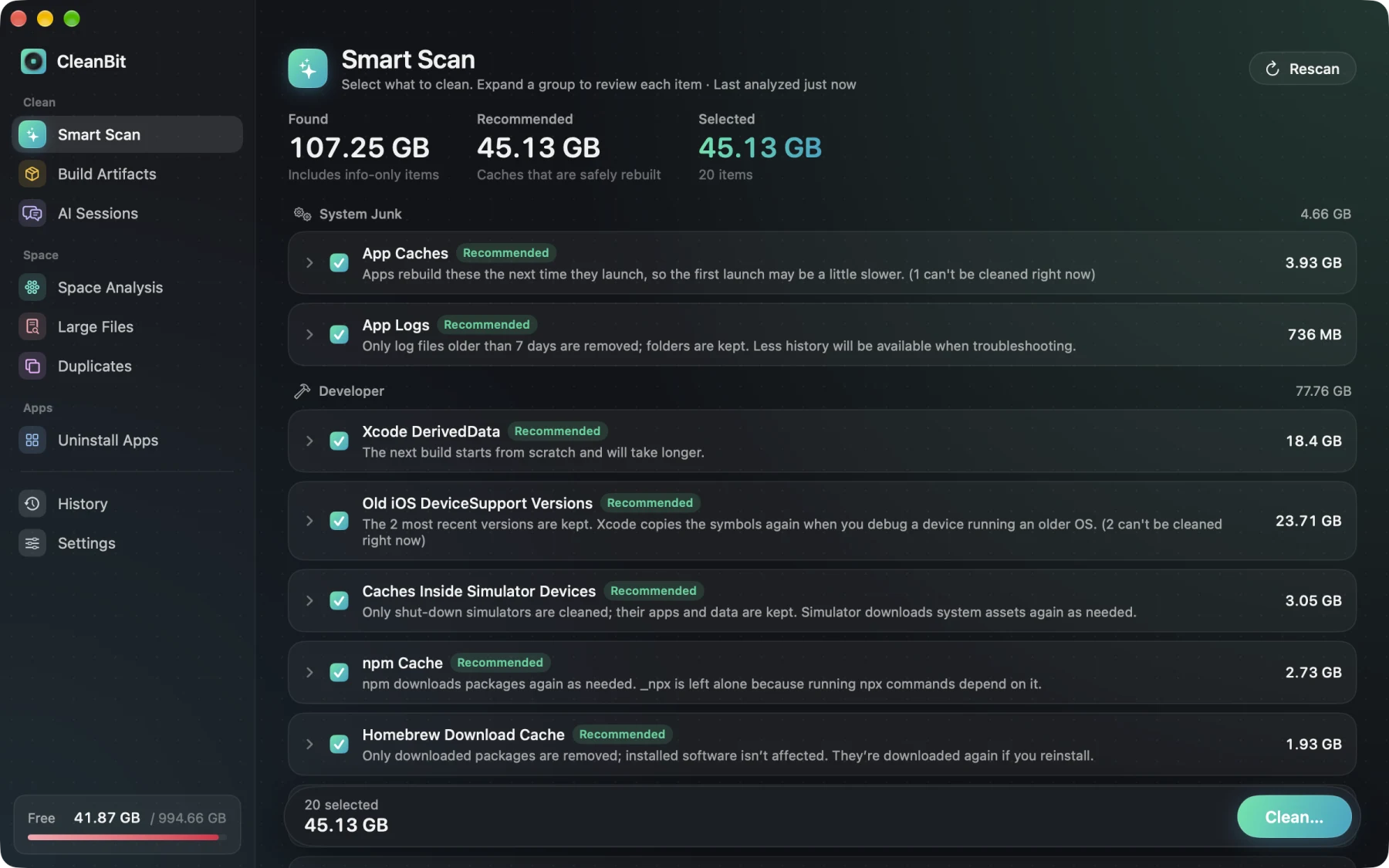
I'm the developer of CleanBit, a sandboxed Mac App Store disk space cleaner for macOS 15+. CleanBit handles the repetitive home-folder Xcode caches automatically with strict guards, while staying transparent about what requires xcrun simctl or Xcode Settings:
- Old DeviceSupport Versions (Recommended): Scans
iOS,macOS,watchOS,tvOS,visionOS, andxrOSDeviceSupport folders, blocks cleanup while Xcode is running, and automatically keeps the 2 most recently modified versions per platform. On the developer Mac we measured, CleanBit found 4iOS DeviceSupportfolders, locked the 2 newest, and marked 12.76 GB as safely cleanable. - Caches Inside Simulator Devices (Recommended): Reads each simulator's
device.plistand only cleans simulators verified as shut down (state == 1), targeting only five regenerable cache/diagnostic paths (Library/Caches,MobileAsset/AssetsV2,var/db/diagnostics,var/db/uuidtext, andPRBPosterExtensionDataStore) so your installed simulator apps and test data remain untouched. On the same developer Mac, CleanBit found 30 cache entries (25.6 GB), blocked 15 from non-shutdown simulators, and marked 9.29 GB as safely cleanable. - Simulator Caches & SwiftUI Preview Data (Recommended): Cleans
CoreSimulator/CachesandXcode/UserData/Previews(3.44 GB on our measured Mac) when Xcode and Simulator are closed. - What CleanBit deliberately leaves to
xcrun simctl/ Xcode: Because CleanBit runs inside Apple's App Sandbox without root access, it cannot delete system-level Simulator runtime disk images under/Library/Developer/CoreSimulator, and it does not delete entire Simulator devices (so it won't wipe your test app state). Usexcrun simctl runtime deleteandxcrun simctl delete unavailableabove for those.
Frequently Asked Questions#
Is it safe to delete ~/Library/Developer/Xcode/iOS DeviceSupport?#
Yes, especially older iOS versions you no longer debug on physical devices. Deleting a version only removes cached debug symbols for that OS build; if you plug in a device running that version later, Xcode copies the symbols again. Keeping the 1–2 most recent versions avoids waiting on your daily test device.
Does deleting Simulator caches remove my installed test apps or Core Data / UserDefaults?#
Not if you only clear cache paths (Library/Caches, diagnostic logs, and CoreSimulator/Caches) on shut-down simulators. Running xcrun simctl erase or xcrun simctl delete, however, wipes the entire simulated device including installed apps and local app data.
Why did deleting CoreSimulator/Devices not free the 15 GB of iOS runtimes I saw in Storage Settings?#
Simulator devices (in ~/Library/Developer/CoreSimulator/Devices) store per-device data and caches, whereas Simulator runtimes (the OS images themselves) are managed separately in /Library/Developer/CoreSimulator and Xcode Components. Run xcrun simctl runtime list and xcrun simctl runtime delete <UUID> (or open Xcode → Settings → Components) to reclaim runtime disk images.
Can a sandboxed Mac App Store cleaner delete Xcode Simulator runtimes?#
No. Simulator runtime disk images live in system-managed locations outside your user home folder, which Apple's App Sandbox cannot modify. A sandboxed cleaner like CleanBit can safely clean DerivedData, old DeviceSupport folders, SwiftUI Preview data, and caches inside shut-down simulator devices in your home folder, while runtime images should be removed with xcrun simctl runtime delete or Xcode Settings.
Written by the CleanBit developer with AI assistance. All measurements were taken on a real developer Mac.